

Software Development
Fixing Garbled Flutter Bluetooth Thermal Printer Receipts
August 202611 min read
If only accented characters are wrong, UTF-8 bytes are being read through a single-byte code page and each byte becomes its own glyph. If the very first character is already garbage, the command dialect is wrong — usually a capability profile that does not match the hardware, or byte sequences copied from a different printer model.
The payload outran the printer's buffer. A 58 mm Bluetooth printer has a small buffer and often no usable flow control, so a long write can simply have its tail dropped. Send in chunks of around 128 to 256 bytes with a short pause between them, and tune both values with the longest receipt the shop actually prints.
Almost certainly the paper size passed to the generator. Building for 80 mm and printing on 58 mm does not clip obviously; it produces text that is consistently misaligned at the right margin because the column count is wrong. Check the PaperSize argument before anything else.
A successful write only means bytes left the device. The usual causes are a stale connection after the printer slept or was power-cycled, or the printer being asleep and losing the first write that wakes it. Reconnect and retry once automatically before showing an error to the cashier.
Work up from the hardware. Print the printer's own self test, then a bare initialise plus a few characters plus a cut, then styled text, then a committed byte fixture, then the live receipt. Each step adds exactly one layer, so the first step that fails names the culprit without guessing.
Key Takeaway
Garbled Bluetooth receipts almost always have one of five causes: UTF-8 sent to a single-byte code page, a payload that overran the printer buffer, the wrong paper size in the generator, a capability profile that does not match the hardware, or a stale connection. Each has a distinct symptom on paper.
Thermal printing fails in a uniquely unhelpful way: the printer accepts everything, reports nothing, and the only diagnostic output is a strip of paper. That paper, though, is a surprisingly precise error message once you learn to read it — the shape of the corruption tells you which layer broke.
This is symptom-first debugging. Find the row that matches what came out of the printer, then read the section that explains it.
Before changing any code, look carefully at the failed receipt and match it against this table. The match is usually unambiguous.
| What the paper shows | Almost certainly | Where to look |
|---|---|---|
| Correct layout, but accented characters are two odd glyphs | UTF-8 bytes interpreted through a single-byte code page | Text encoding and the active code page |
| Perfect start, then it stops mid-receipt | The payload outran the printer's buffer | Chunked writes and inter-chunk delay |
| Everything readable but nothing lines up at the margin | Wrong paper size, so the column count is wrong | The generator's PaperSize argument |
| Random symbols from the very first character | A wrong or unsupported command dialect | The capability profile and any hardcoded byte sequences |
| Nothing at all, but the app reports success | A stale connection, or the printer asleep | Connect, reconnect and retry logic |
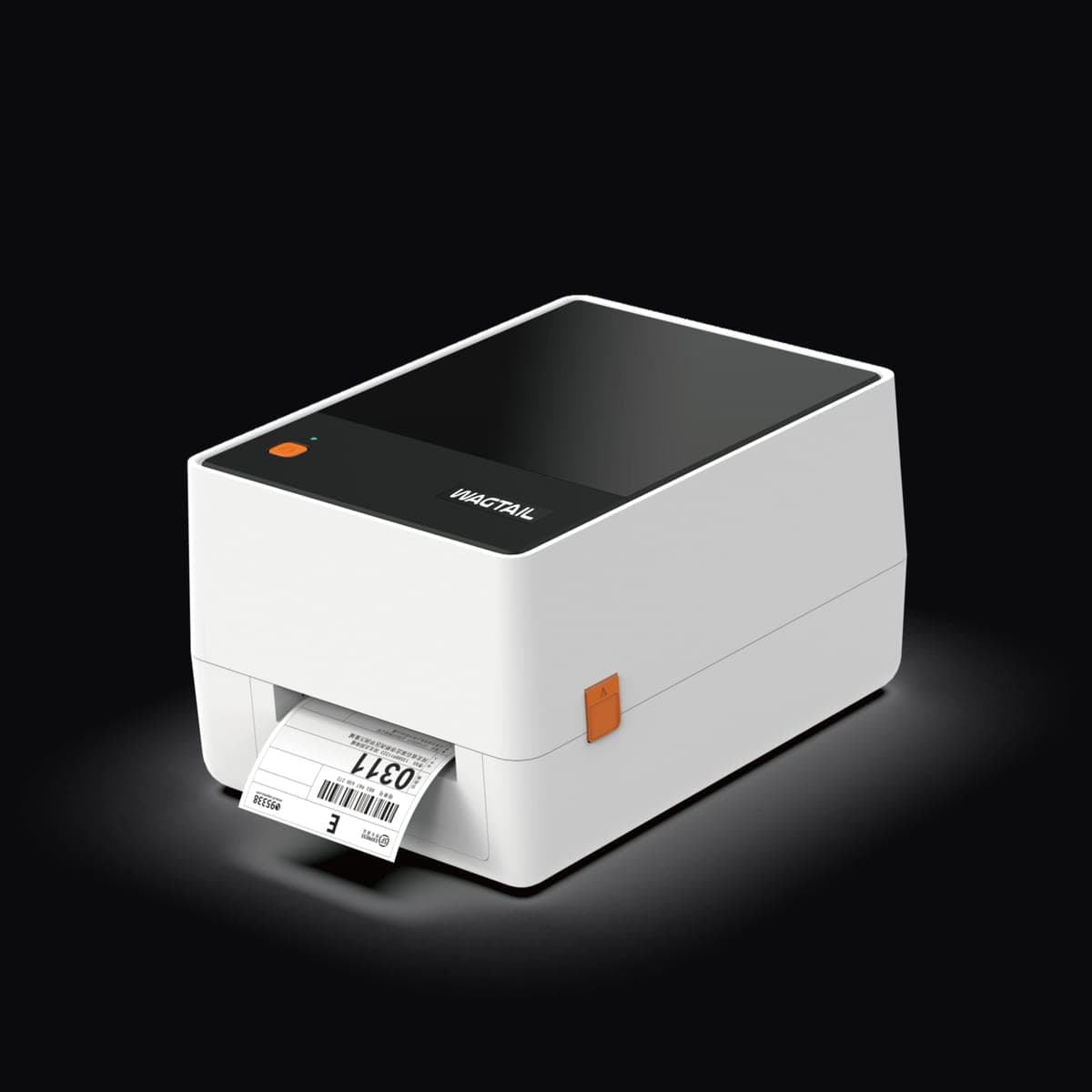
This is the most common report and the easiest to fix. The printer holds single-byte character tables and prints from whichever one is active; UTF-8 sequences arrive as separate bytes, so each becomes its own glyph.
// Symptom: "Rp 25.000" prints as "Rp 25.000" on one printer and as
// two stray glyphs on another. Cause: the bytes were UTF-8 and the
// printer was reading them through a single-byte code page.

// Wrong — hands raw UTF-8 to a printer that has never heard of it.
bytes.addAll(utf8.encode('Café Anggrek'));

// Right — let the generator encode to the active code page, and pick
// a capability profile that matches the hardware.
final profile = await CapabilityProfile.load(name: 'default');
final generator = Generator(PaperSize.mm58, profile);
bytes.addAll(generator.text('Cafe Anggrek'));   // ASCII survives anywhere

// Safest of all for shop data you do not control: normalise first.
String asciiFold(String input) => input
    .replaceAll(RegExp(r'[\u2018\u2019]'), "'")
    .replaceAll(RegExp(r'[\u201C\u201D]'), '"')
    .replaceAll('\u00A0', ' ');
Two defences. Let the generator encode text through a capability profile rather than pushing raw bytes yourself, and normalise incoming shop data — supplier catalogues are full of curly apostrophes and non-breaking spaces that survive a database round trip and die at the print head.
Beware of testing only with your own product names. Development data is clean ASCII; real shop data includes degree signs, en dashes pasted from a spreadsheet, and the occasional emoji in a product name. Test with a copy of the customer's actual catalogue before release.
A 58 mm printer has a small buffer and, over Bluetooth serial, often no usable flow control. Write a long receipt in one call and the tail can simply be dropped. The give-away is that failures correlate with receipt length: three-line tests always work, forty-line kitchen tickets fail.
/// Symptom: the top of the receipt is perfect and the bottom is
/// missing, or a long receipt prints as fragments. Cause: the payload
/// outran a small serial buffer with no flow control in between.
const chunkSize = 256;            // conservative; some firmware wants 128
const pauseBetweenChunks = Duration(milliseconds: 40);

Future<void> sendChunked(List<int> bytes) async {
  for (var offset = 0; offset < bytes.length; offset += chunkSize) {
    final end = (offset + chunkSize).clamp(0, bytes.length);
    await PrintBluetoothThermal.writeBytes(bytes.sublist(offset, end));
    await Future.delayed(pauseBetweenChunks);
  }
}

// Tune chunkSize and the pause together, and measure with the longest
// receipt the shop actually prints — a 40-line kitchen ticket, not the
// three-line demo that always worked.
Chunking with a short pause fixes it, and the numbers are hardware-specific. Start conservative, then measure with the longest receipt the shop actually prints. A pause that is too short reintroduces truncation; one that is too long makes a busy counter feel sluggish, so tune both values together rather than doubling one blindly.
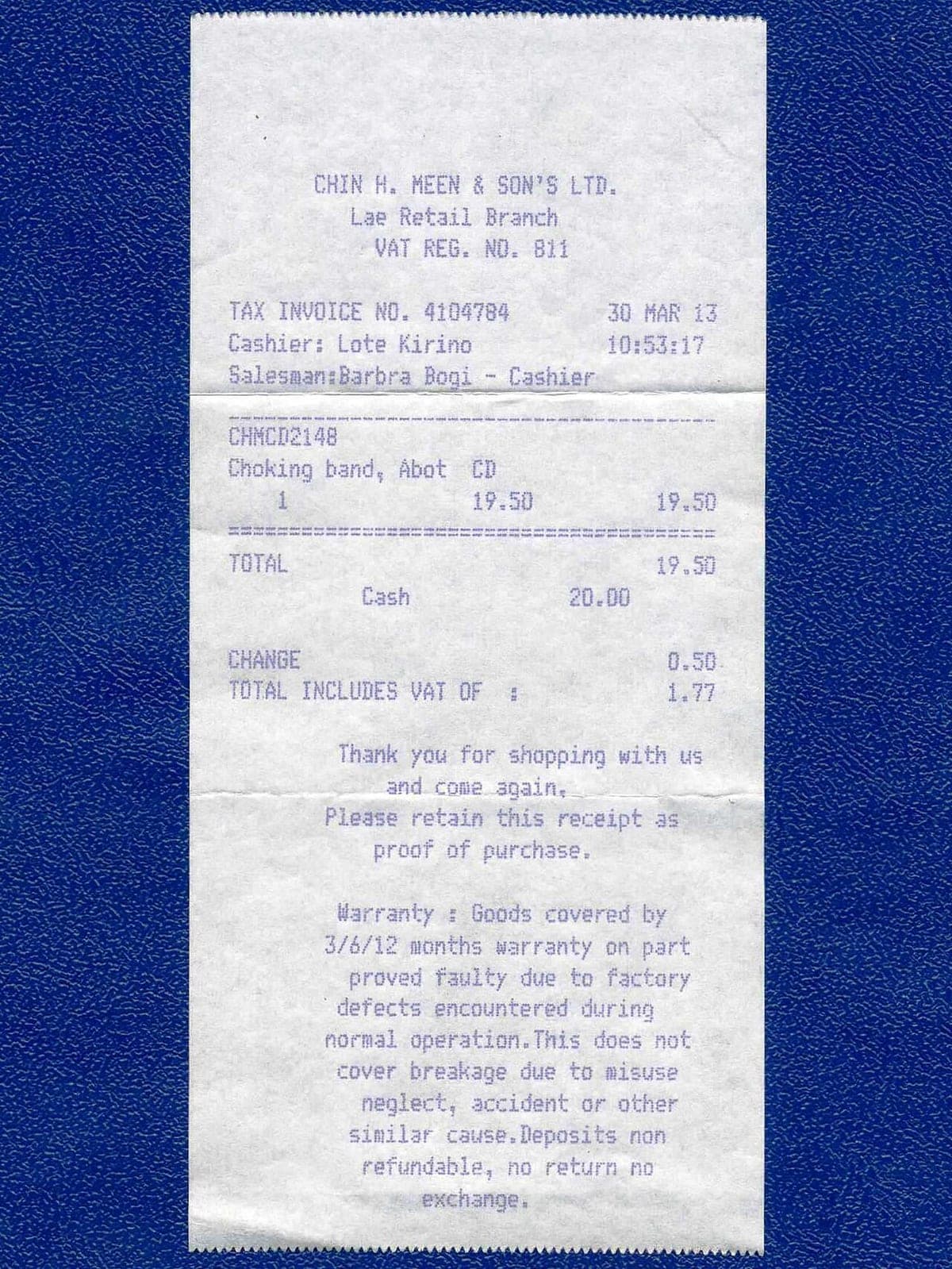
The rest of the table resolves quickly once you know what to check.
That last one deserves emphasis because it wastes the most engineering time. If the printer's own self test is faint, stop debugging your app.
When a report comes in, work up from the hardware rather than down from the code. Each step adds exactly one layer, so the first failure names the culprit.
/// The five-minute triage script. Run it before reading any app code.
/// Each step isolates one layer, and the first one that fails is the bug.
///
/// 1. Print the printer's own self test  (hold FEED while powering on)
///       -> proves paper, head, battery, firmware
/// 2. Send ESC @ then "HELLO" then a cut, nothing else
///       -> proves pairing, SPP link and write path
/// 3. Send the same with double height and bold
///       -> proves the style commands the profile is emitting
/// 4. Send one full receipt from a committed byte fixture
///       -> proves the builder, in isolation from live data
/// 5. Send the live receipt that failed
///       -> whatever changed between 4 and 5 is your defect
Keeping a committed byte fixture for step four is what makes this fast. It removes live data, network state and the ERP from the picture, so if the fixture prints and the live receipt does not, the defect is provably in how the receipt was built rather than in how it was sent.
Add a hidden developer screen that dumps the last generated payload as hex and can re-send it. Being able to ask a shop to tap two buttons and read you the first sixteen bytes replaces an entire day of speculation.
Three habits have kept these bugs from recurring in the apps I maintain.
Bluetooth thermal printing looks unreliable mostly because its failures are silent. Give yourself a feedback loop — read the paper, isolate a layer at a time, keep a byte fixture — and the same five causes explain nearly every garbled receipt you will ever be sent a photograph of.